Custom Tables Tutorial Guide
Custom tables help you organize, track, and manage important data—such as client courses or team activities—in a way that fits your workflow. Here’s how to build, configure, and use custom tables to streamline your record keeping.
Step 1: Create a new table.
Click “Create new table“
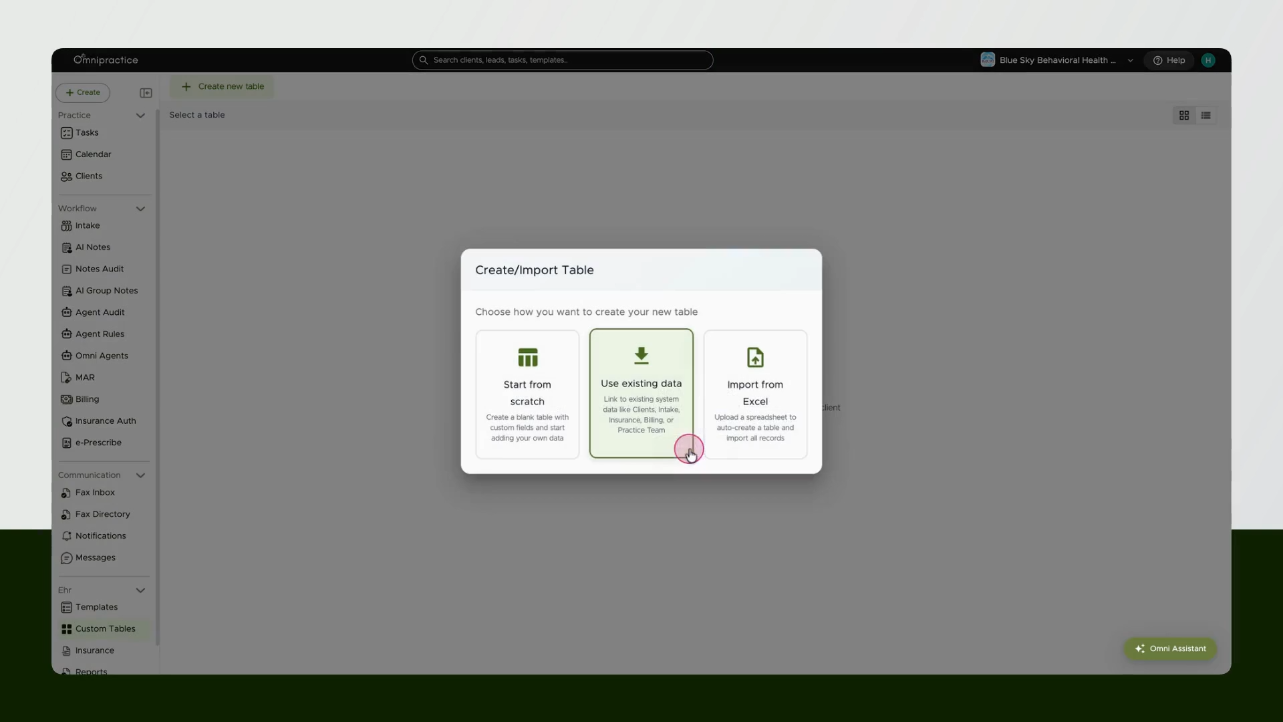
Step 2: Choose how to create your table.
Select to start from scratch, use existing data, or import from Excel. This example starts from scratch.
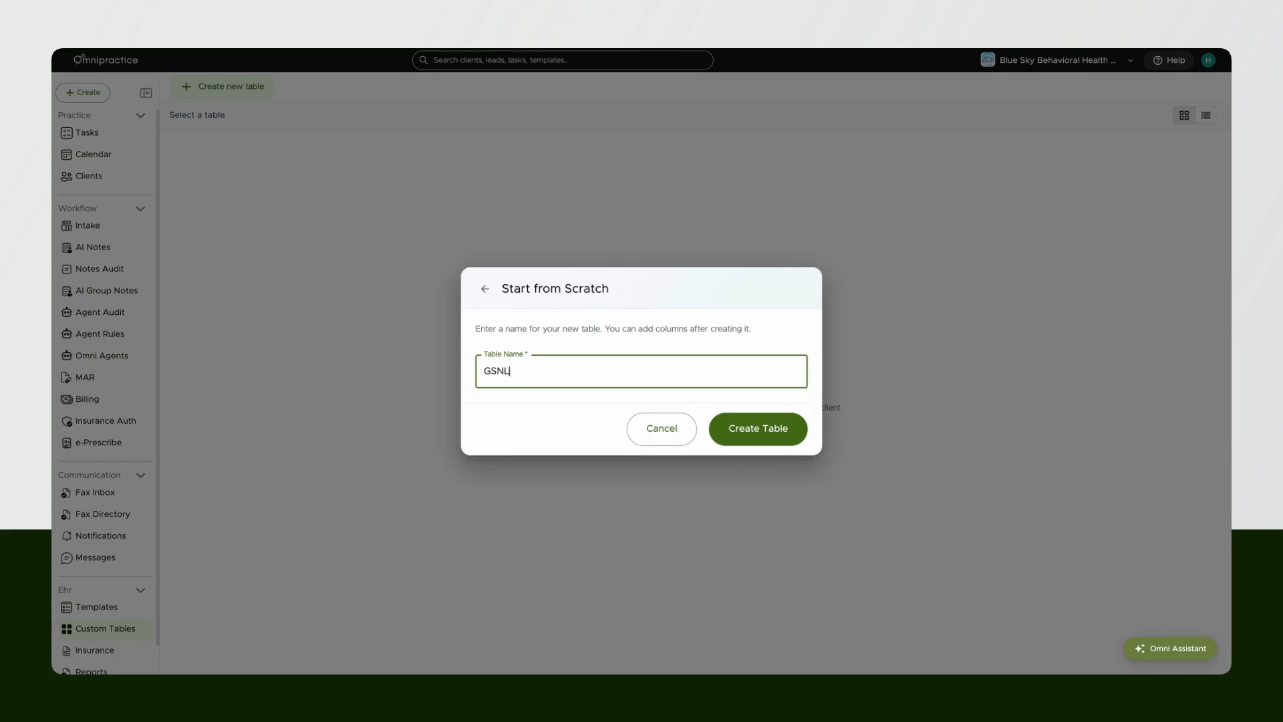
Step 3: Name your table.
Enter the table name—such as “GSNL course tracking.”
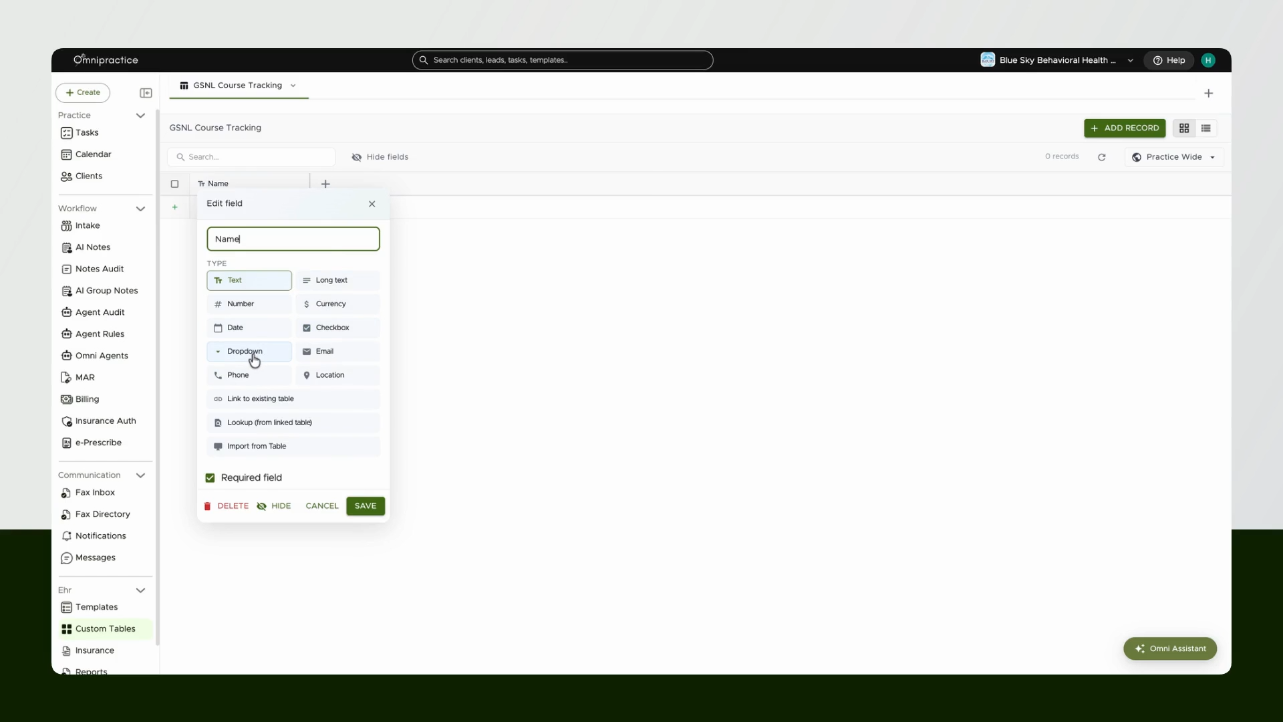
Step 4: Add columns and define field types.
Click a column to choose its type: Text, Long Text, Number, Date, or Dropdown.
Use dropdowns to track status or categories.
Use dates for events like course start and end.
Use numbers for scores or IDs.
Step 5: Link columns to existing tables.
Link a column to a table in your system, such as Clients, Leads, or Team Members, to connect records directly.
You can also link between two custom tables using the Lookup option.
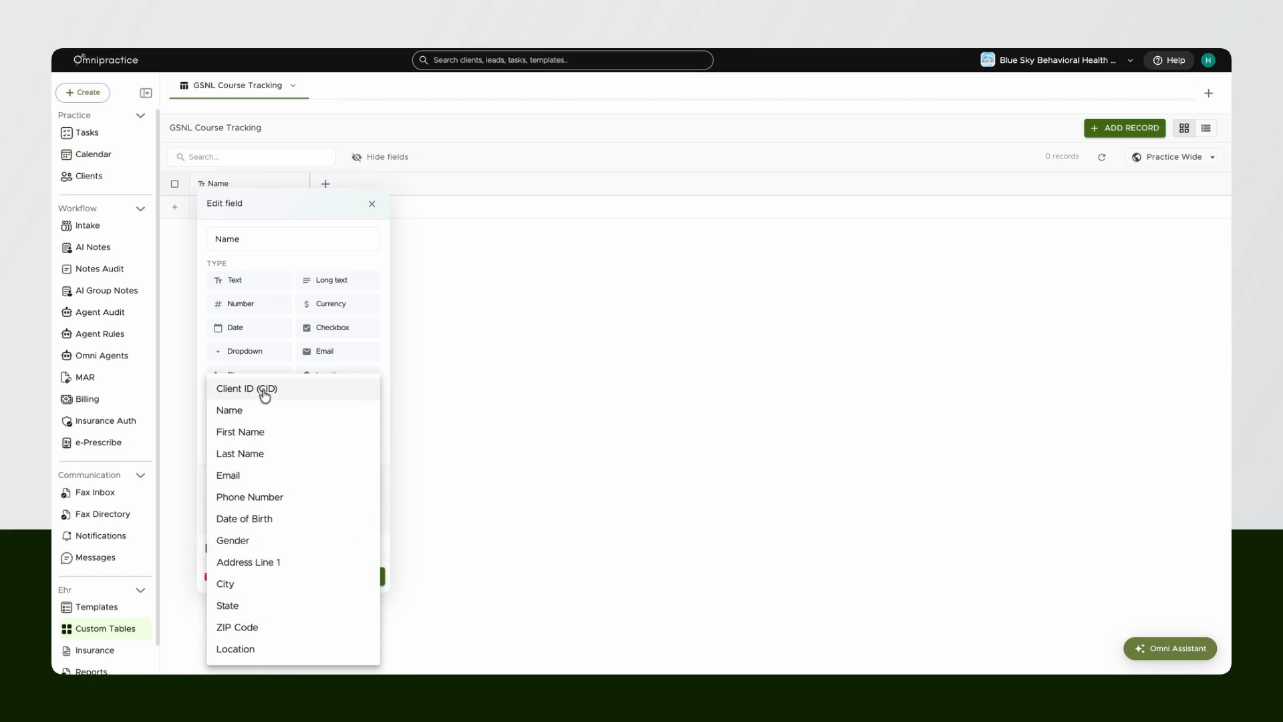
Step 6: Import or set up data fields.
Choose the table you want to fetch data from, such as Clients, and pick an identifier (in this case, the name field).
Step 7: Add dropdown options.
Create a dropdown column and add your items—like different course names.
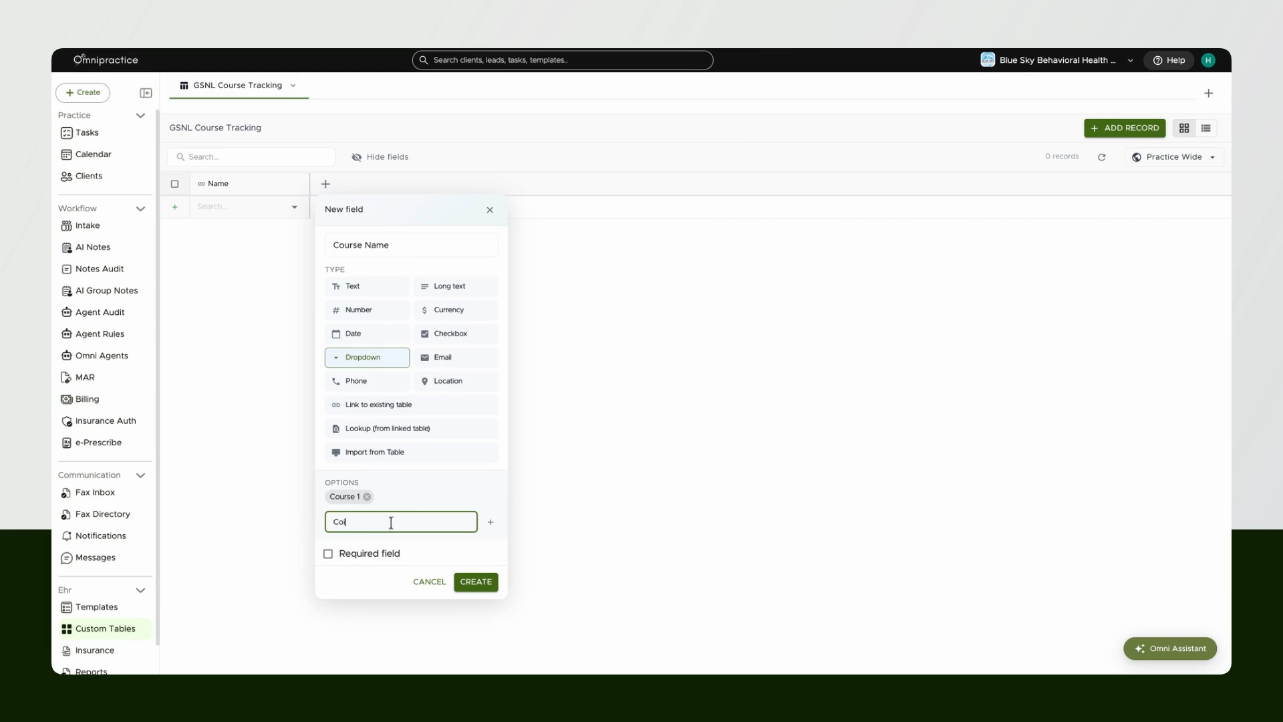
Step 8: Add date fields or link to team members.
Insert columns for Start Date and End Date as date fields, then add a provider column linked to Team Members.
Enable the logged-in user filter if you want providers to see only their own entries.
Step 9: Add a number column.
Set the column type to Number to add scores etc.
Step 10: Save and view your table.
Your table is now ready for use.
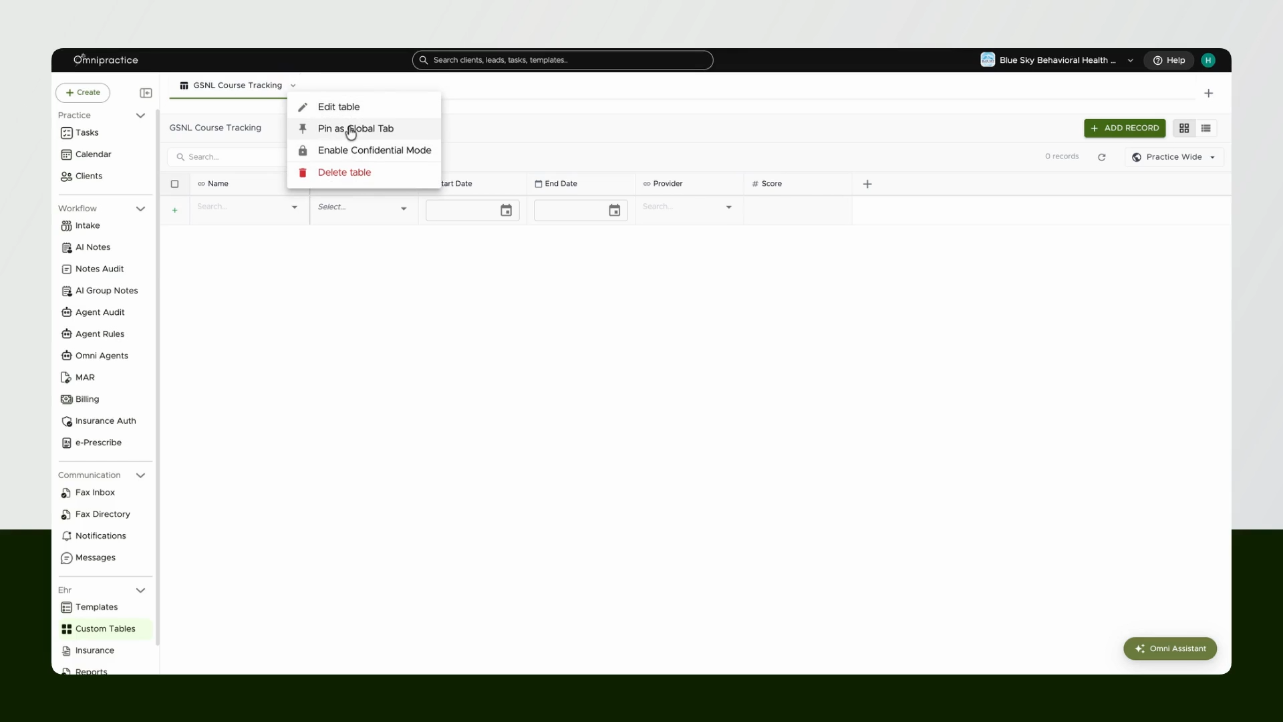
Step 1: Pin your table or share it.
Pin your new table as a global tab for fast access from the navigation bar, or unpin if you want to remove it later.
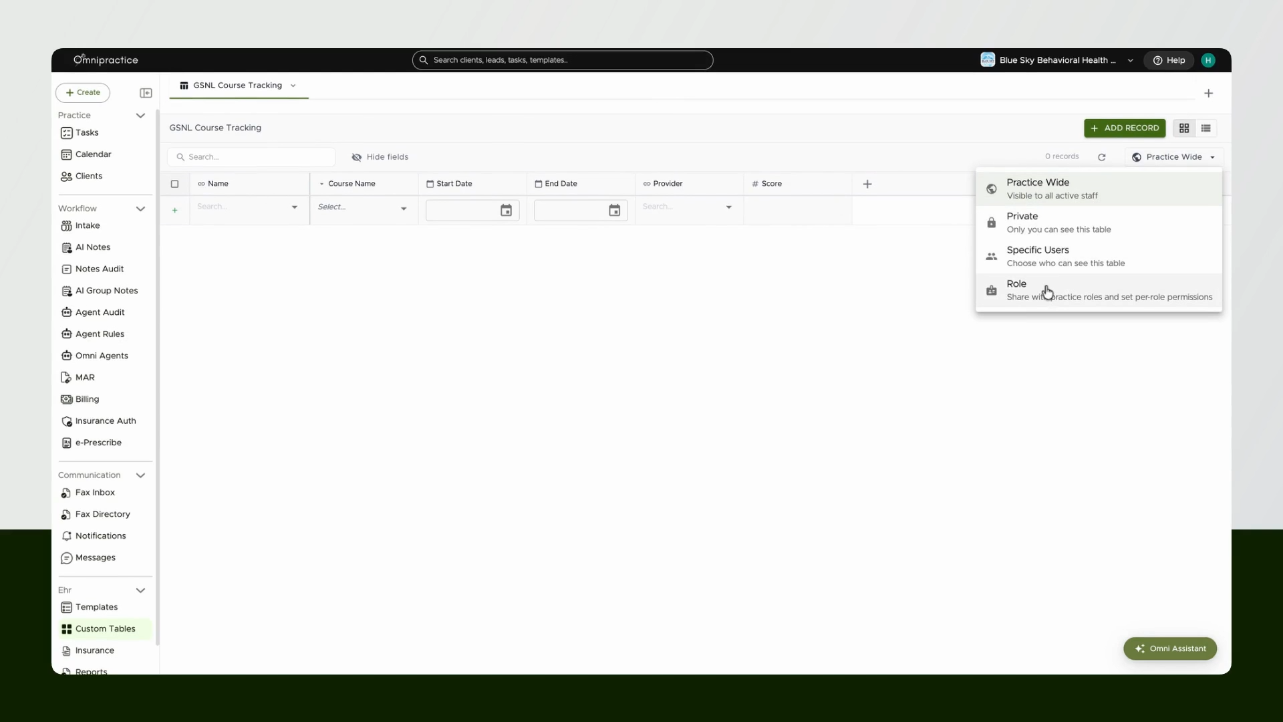
Share your table practice-wide, privately, to specific users, or by user role.
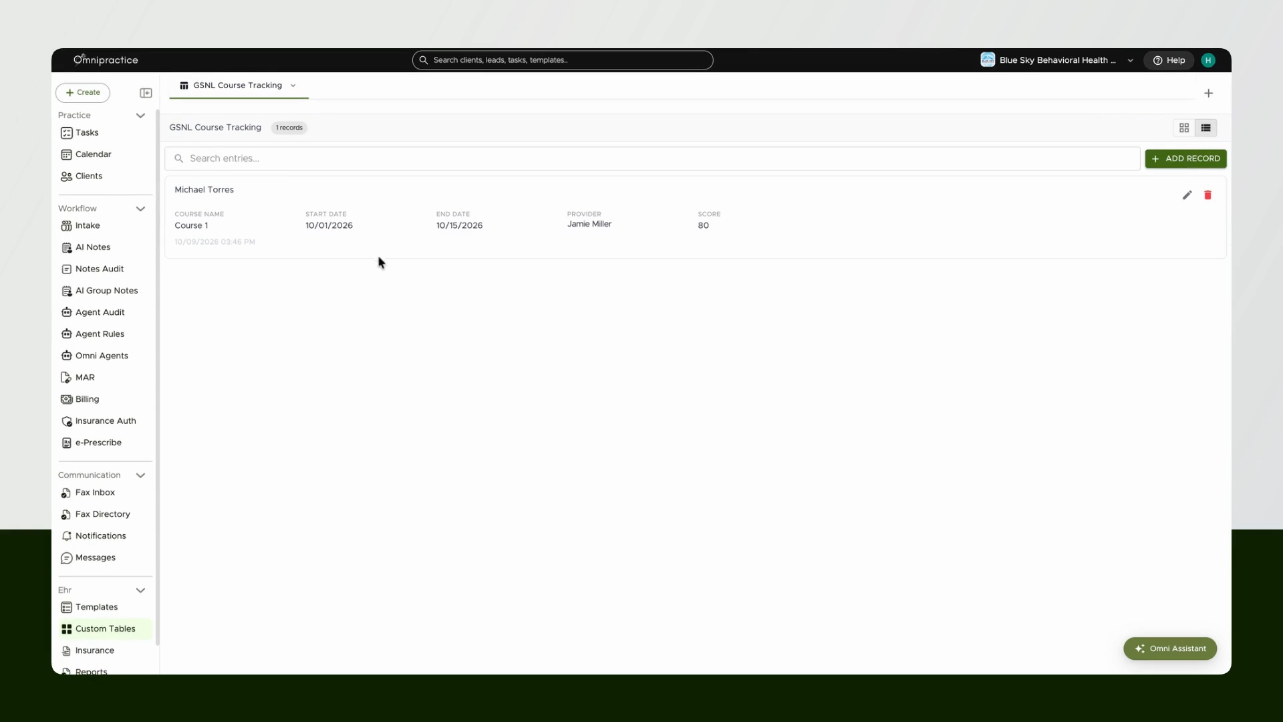
Step 2: Add or update table records.
Select a client, course, start and end date, provider, and score. Hit Enter to save your new record.
Switch between log view and table view as needed for easier reading or entry.
Step 3: Show the table as a client file tab.
Go to Profile Builder, find your custom tabs, and add your table as a tab to client files. Choose your identifier—like name—and decide if you want it visible in client or lead files.

Step 4: Access client data directly.
From the client record, see your custom table as a new tab. Add or edit records for each client as needed.
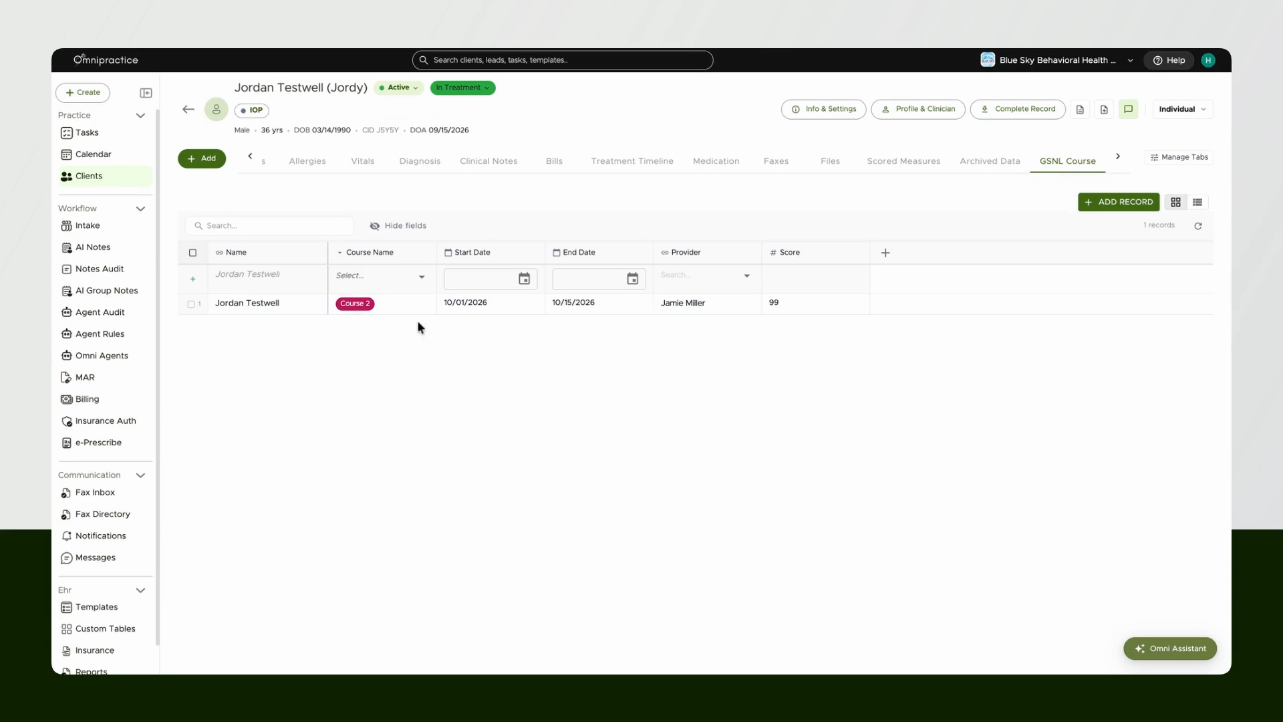
You can keep adding records, update existing ones, search entries, or link everything for each client. Any columns can be hidden or refreshed as your needs change.
Conclusion
Custom tables give you a flexible and organized alternative to tools like Google Sheets—keeping all your client or team data in one secure place. You get both structure and freedom, so you’re never juggling records across multiple platforms.
If you have questions or need a hand, reach out anytime at support@omnipractice.ai.
Was this helpful?
Still need help? Ask the team