How to record a therapy session with Omni Recorder
Get ready to learn how to record a therapy session using the Omni Recorder. By following these steps, you'll capture your session, generate transcripts, and take notes for efficient documentation.
Step 1: Log In and Access Your Calendar
After logging in, start on the calendar page. Review your scheduled sessions and access the client file. You can also check the sessions tab in the Client File to see upcoming sessions. Confirm the details and make sure you're ready to join.

Step 2: Join the Session Video Call
Head to the calendar and Join the session with Join Video button. This will take you to appointment page.

Step 3: Download and Set Up the Omni Recorder(If you haven’t)
If you haven't done so already, download the Omni Recorder. Access it using one of these ways: - Go to clinician settings and open the AI Assistance Tab to download or Find it directly in Chrome extensions by searching Omni Recorder.
You can check this video to learn about on how to set up Chrome Recorder:
Step 4: Log In to the Omni Recorder
Once you’ve installed it, log in with the same email as your clinician account.
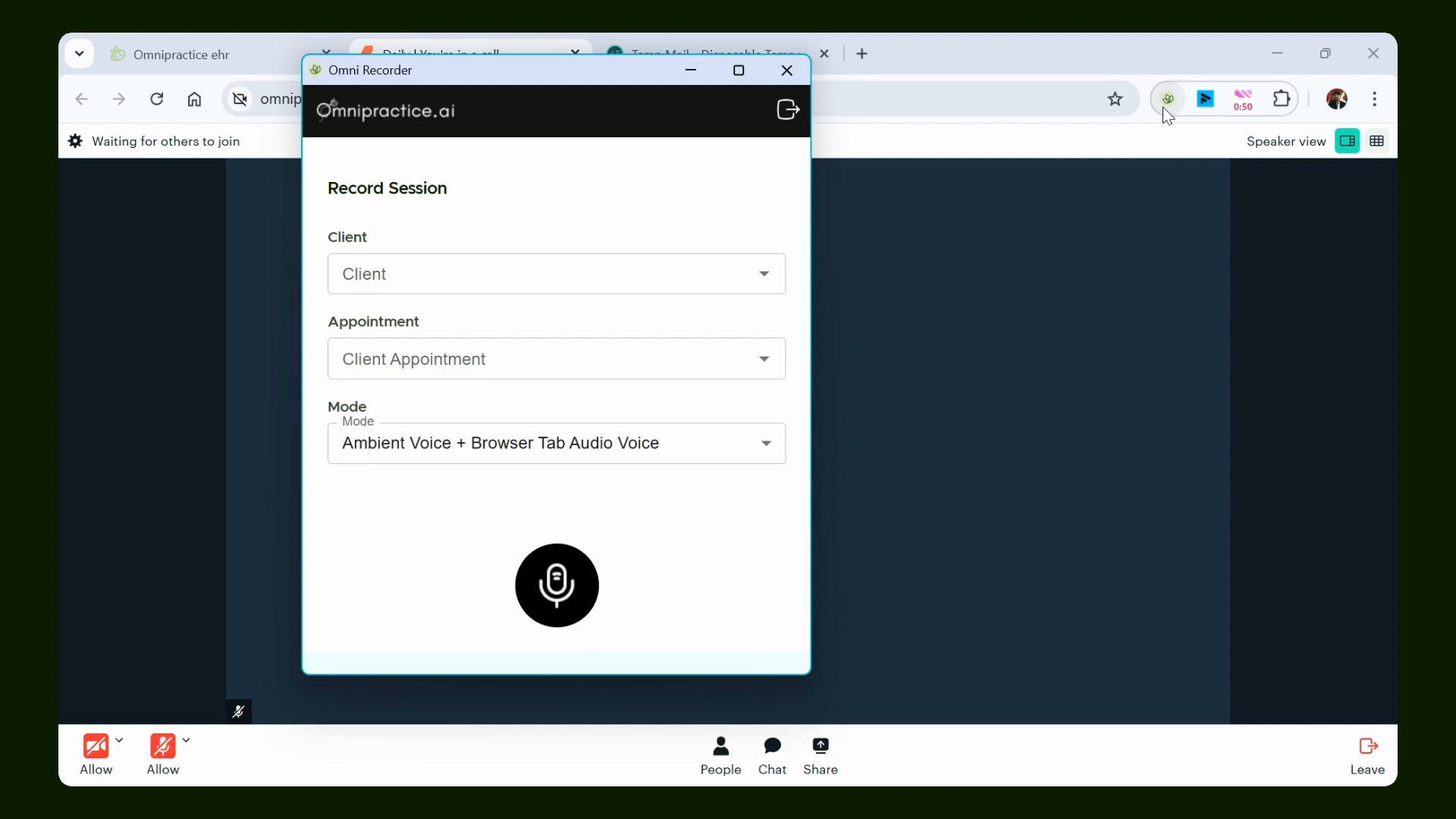
Step 5: Select the Client and Appointment
Once inside the Omni Recorder, select your client. Appointment details—such as the scheduled time—populate automatically. Pick the correct appointment and set your voice recording mode.

Step 6: Start Recording the Session
Begin recording. Choose the browser tab where your meeting occurs. If using the integrated video tool, select that tab. For Google Meet appointments, pick the Google Meet tab.

Step 7: Stop Recording and Close the Recorder
After your session ends, stop the recording. The application will automatically generate a transcript shortly after. Close the Omni Recorder and leave the call.

Step 9: Review the Transcript and Generate Session Notes
Return to the client appointment to find the generated transcript. Use it to generate notes as needed.

You can check the below video on How to generate notes with transcript using AI
That's it! You've successfully recorded your session, created a transcript, and learned how to document therapy session using the Omni Recorder.