Writing progress notes with and without AI
Write comprehensive progress notes after a therapy session using manual entry or AI assistance. This step-by-step guide will walk you through adding notes, choosing templates, leveraging AI, and finalizing the process for accurate, efficient documentation.
Step 1: Access Your Client's Chart
To get started, locate your client's profile in your dashboard. For example, here's Amelia's chart with her previous sessions.

Step 2: Open the Sessions Tab
Go to the session for which you want to write a note. Click add note. Under progress note, select a note template such as SOAP note or DAP note.


Step 3: Begin a New Note
The template opens, showing structured fields for your entry.
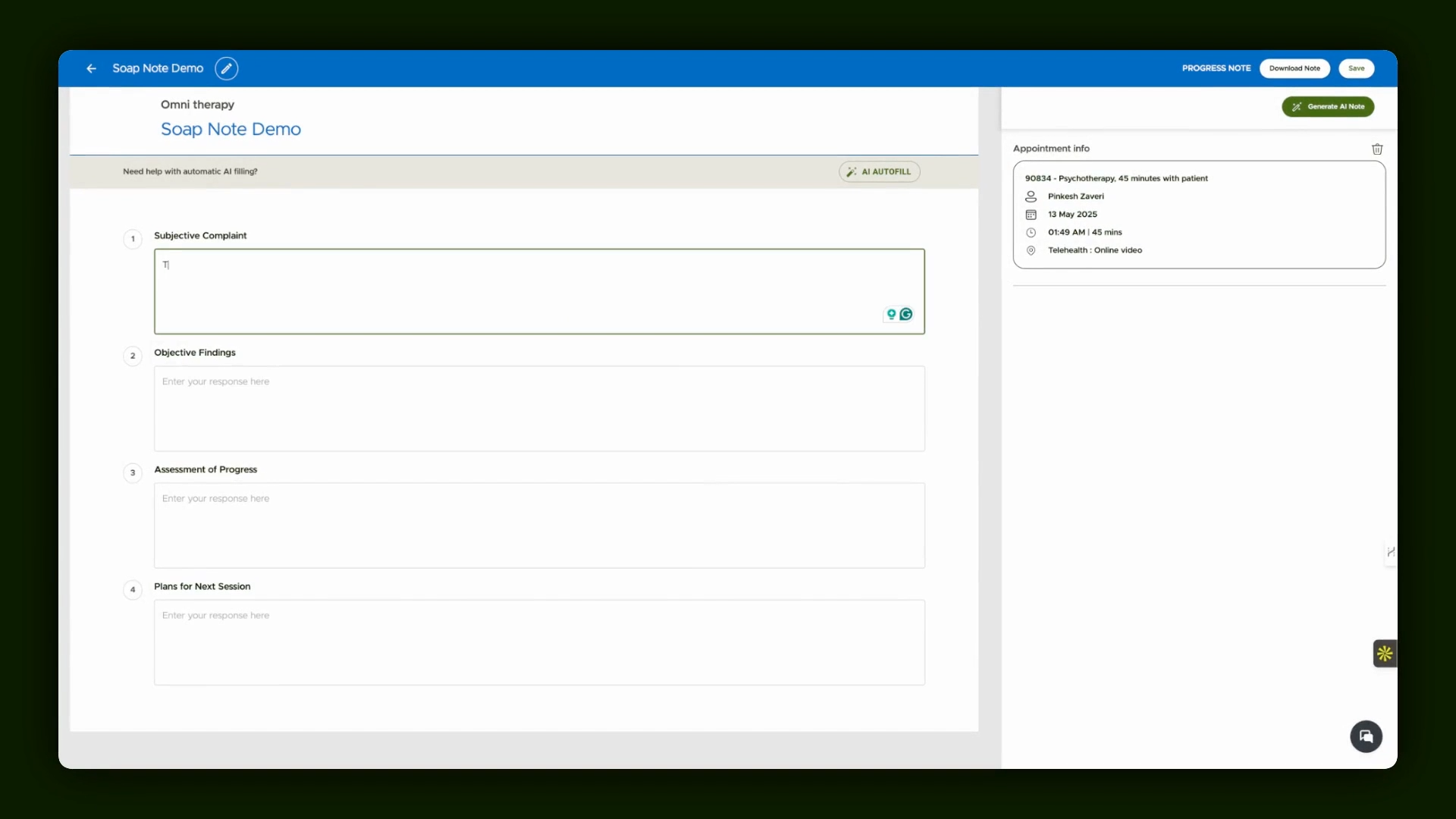
Step 4: Manually Document the Session
In the note template, fill in details based on what you remember from the session. Enter your observations and relevant session content.
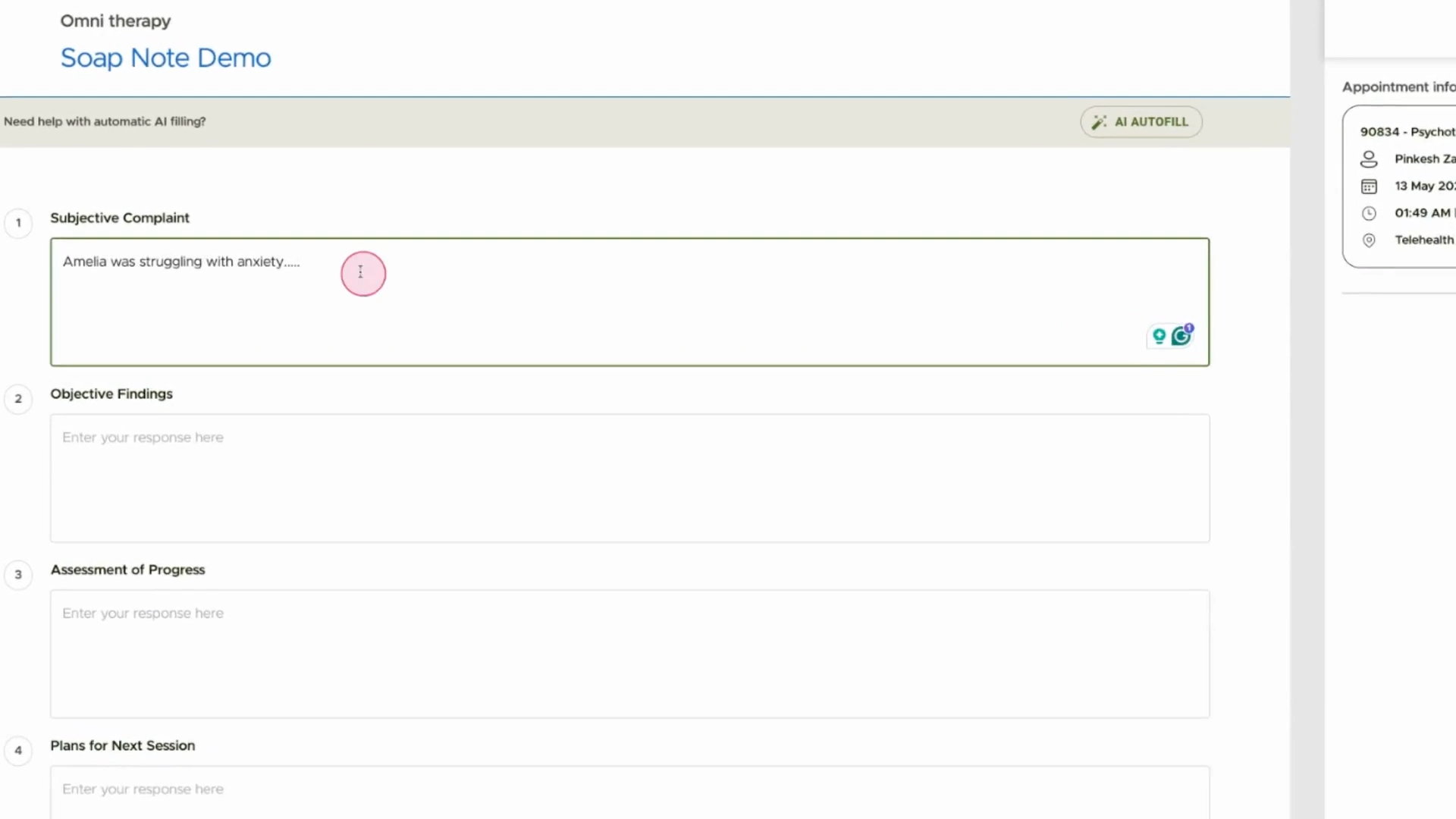
Step 5: Continue Detailing the Note
Build out your note with more session insights and details, following your chosen template format. Or instead of typing everything, try AI assistance. Use the provided AI feature to help generate a draft of your progress note.
Step 6: Provide the Session Context to AI
Share key memories or talking points from the session with the AI to help it produce relevant content.

Expand on your recollections—such as specifics about the client’s struggles and goals—so the AI has sufficient context.
Step 7: Review and Save the AI-Generated Note
Once the AI creates a note from your input, review it. Save the note if it looks accurate and return to the client’s chart. Observe confirmation or status updates as your workflow continues.

Step 8: Work with Sessions Having Transcripts
For sessions with recorded transcripts, find the session in the client chart that displays or links to a transcript.
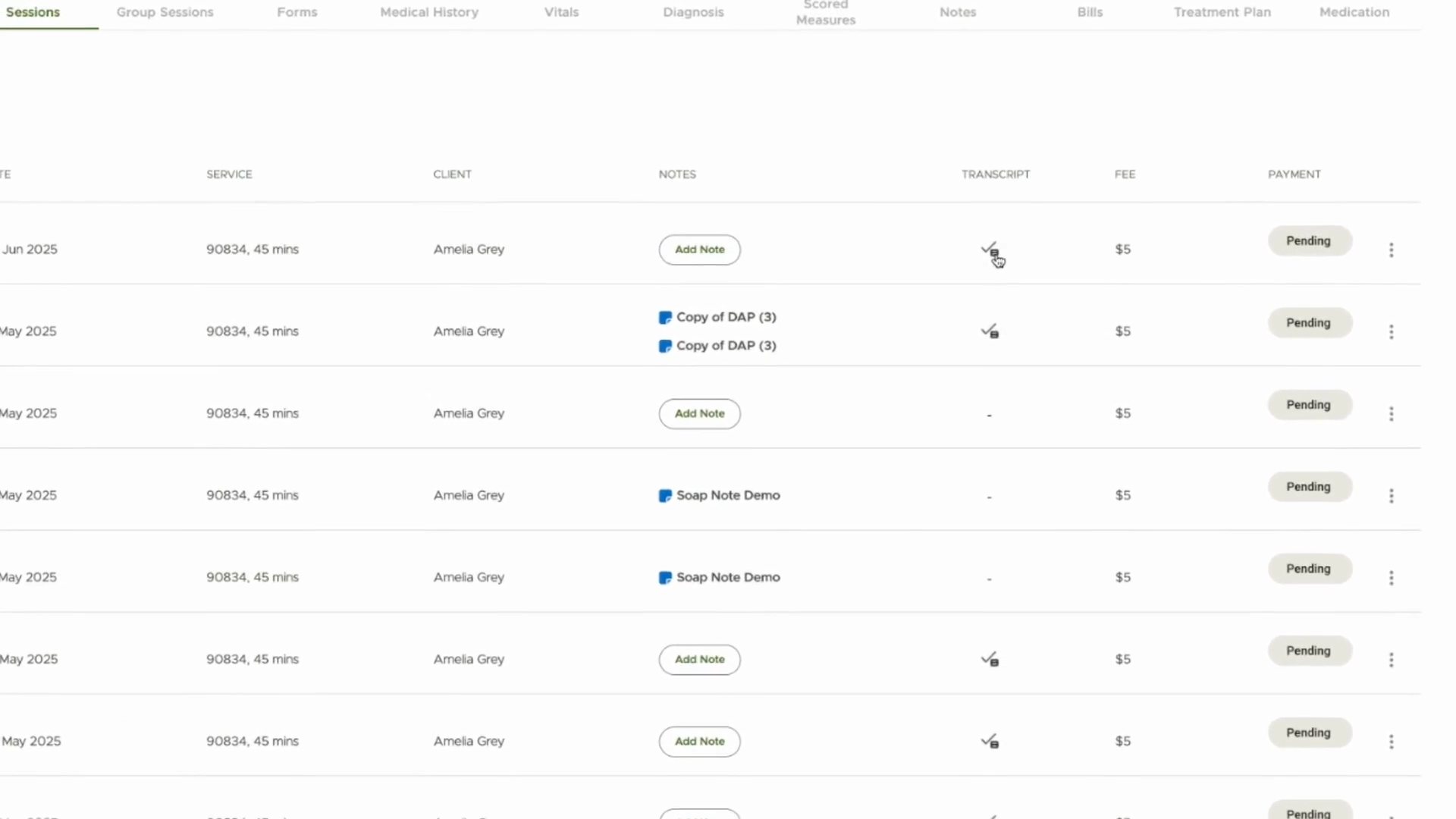
Step 9: Fill Note Template Using AI and Transcript
Open the note template, confirm the AI-generated summary, and ensure the transcript is included for reference.

Step 10: Trigger AI Note Generation
Click to generate the note using the available transcript details.
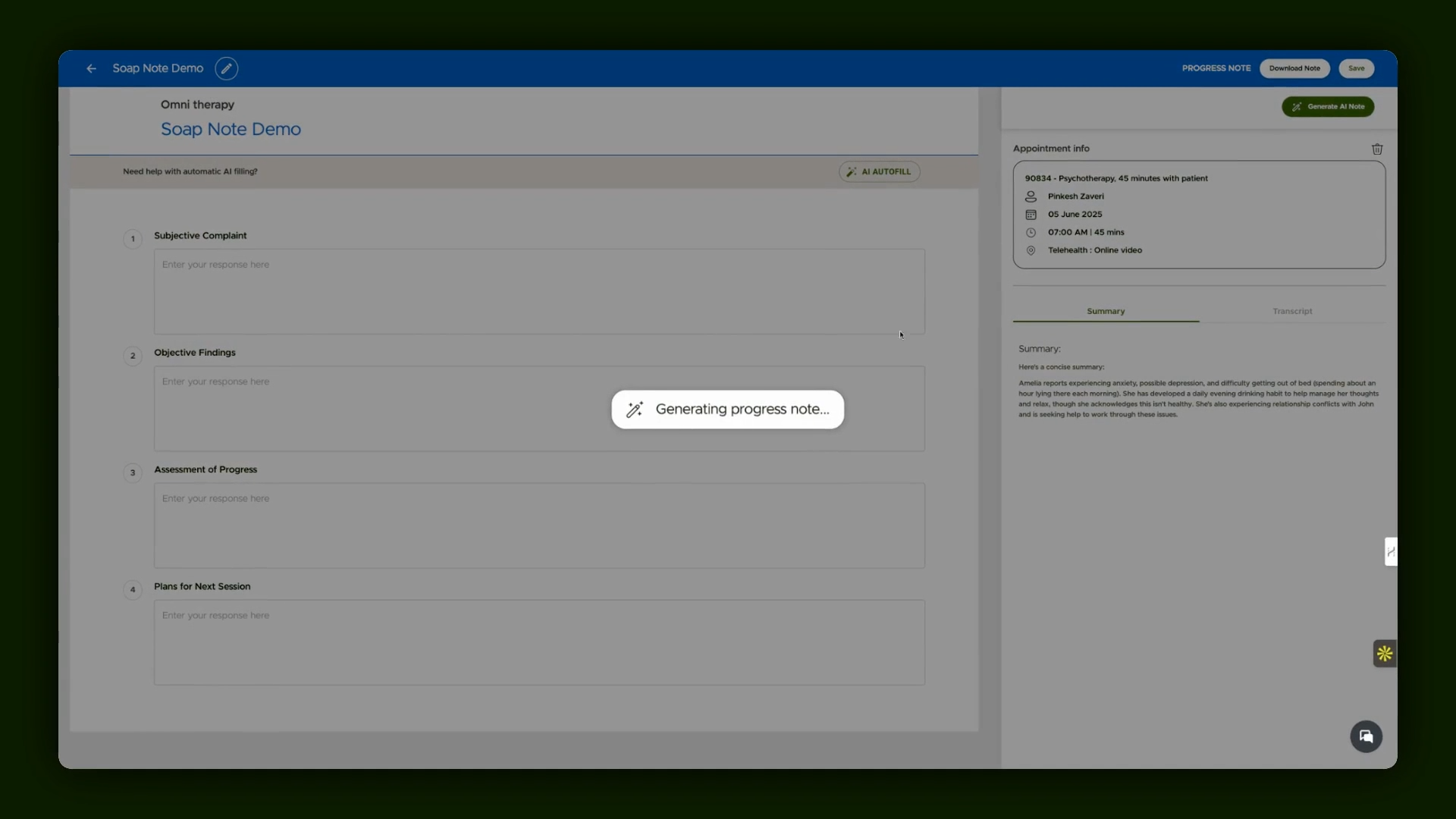
Step 11: Save the Enhanced Note
With a more detailed note generated (thanks to rich transcript data), save your progress note when you're satisfied.

Step 12: Finish and Review All Notes
Return to the client chart to find your completed SOAP note, now documented with either your manual input, AI support, or both.
By following these steps and using the provided tools, you're able to thoroughly and efficiently document therapy sessions—whether by manual entry or leveraging AI with or without session transcripts.