Creating and Sending Form Packets to Leads & Clients
Packets in Omni Practice let you streamline your intake and consent process by sending groups of forms to leads or clients. Here’s how to create packets and send them where they’re needed—either manually or automatically.
Create New Packets
Step 1: Go to the Templates section from your main navigation.

Step 2: Head to the Packets page.

Step 3: Click New Packet.

Step 4: Enter a name for your new packet, like “Intake Packet.”

Step 5: Choose a Category for the packet.

Step 6: Add forms by searching in Team Library, System Templates, or Private forms.

Step 7: Select multiple consent forms and questionnaires to include in the packet.

Step 8: Save your packet. You’ll now see options to edit or delete your packet if needed.

Sending Packets to Leads
Step 1: Go to the Intake section.
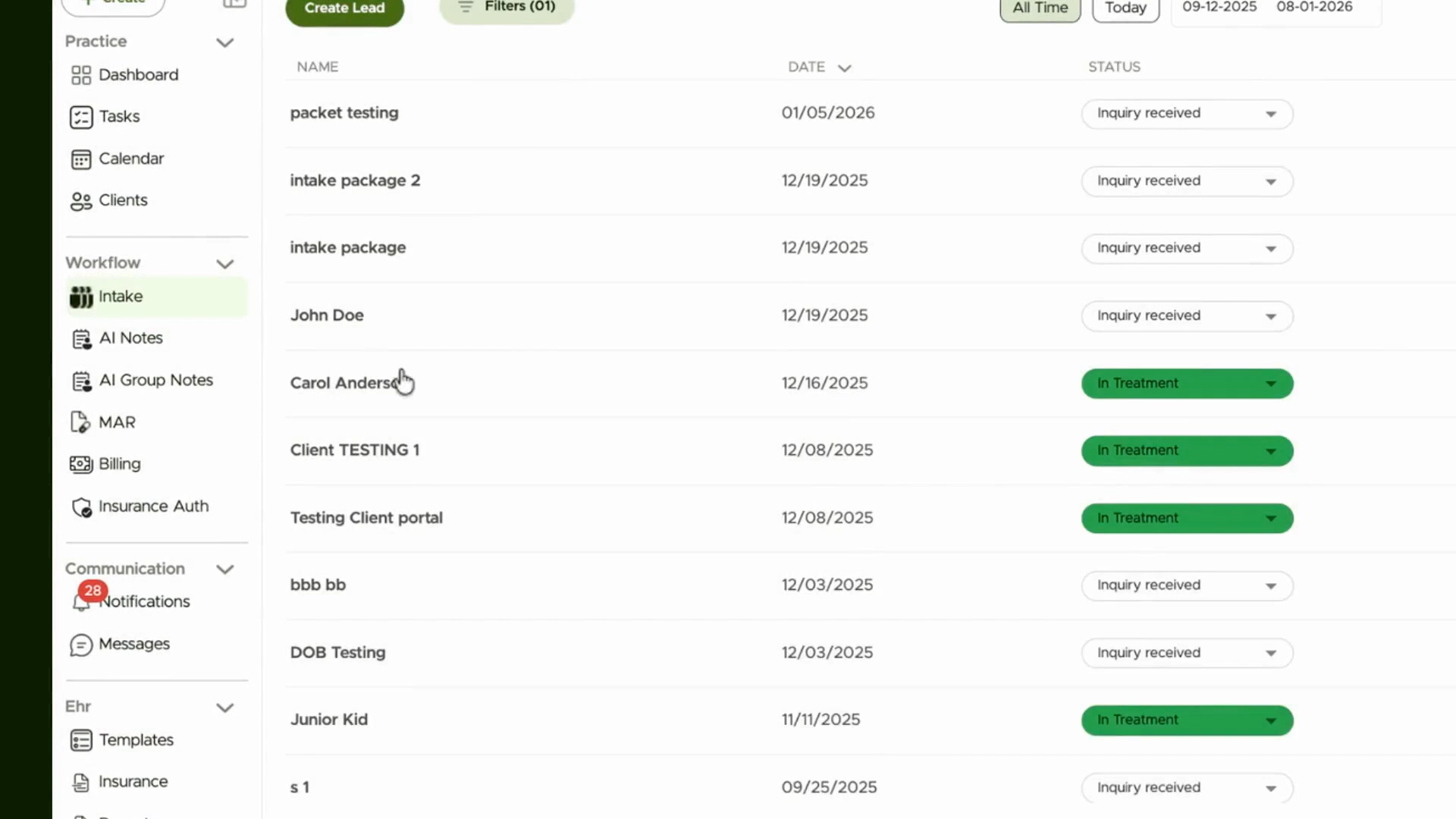
Step 2: Open a lead profile.

Step 3: Check that the lead has an email address so forms can be sent.

Step 4: Go to the Forms tab.

Step 5: Click Send Forms and select Send Packet.
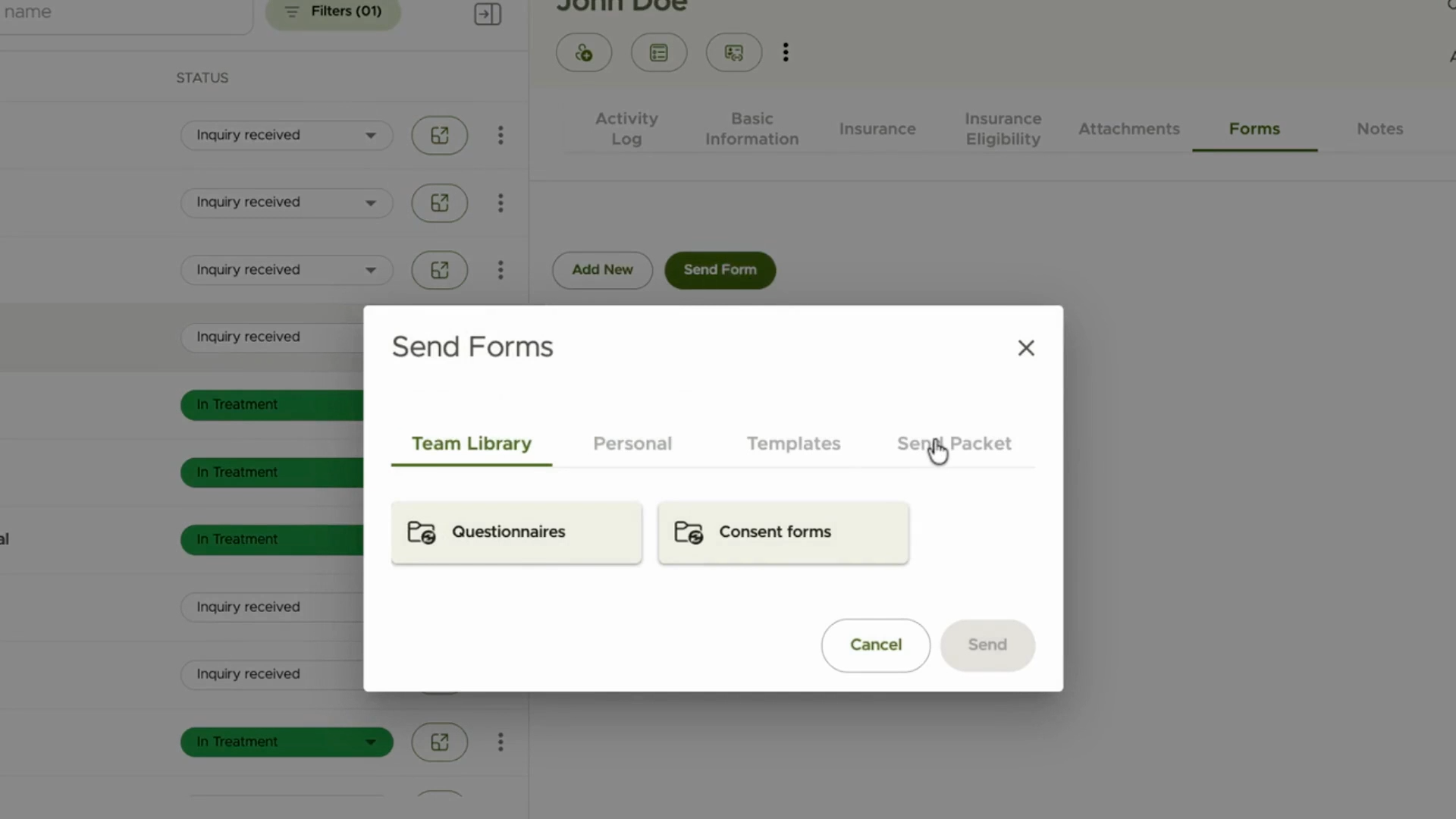
Step 6: Choose the desired packet and click to send. The lead will receive an email with a link to the portal where they can fill out the forms.

Sending Packets to Clients
Step 1: Navigate to the Clients page.

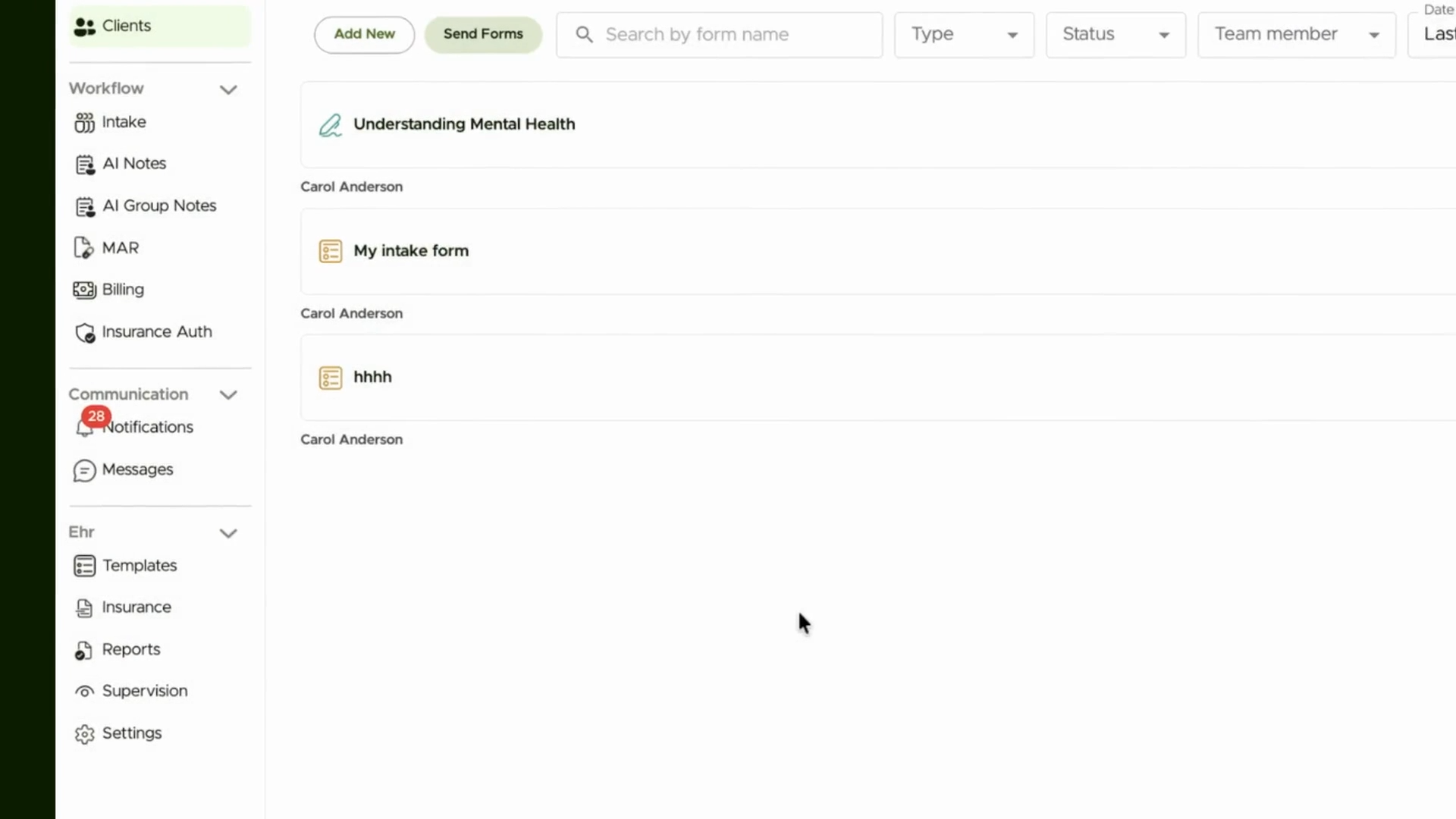
Step 2: Open the client profile and go to the Forms section.

Step 3: Click Send Packet.

Step 4: Select the packet you want and send it to the client.
Managing and Automating Packet Sending
Step 1: To automate packet sending, go to Settings.

Step 2: Open the Lead and Client Intake Packet settings.

Step 3: Enable automatic packet sending for new clients and leads.

Step 4: Select the desired packet for leads or clients.
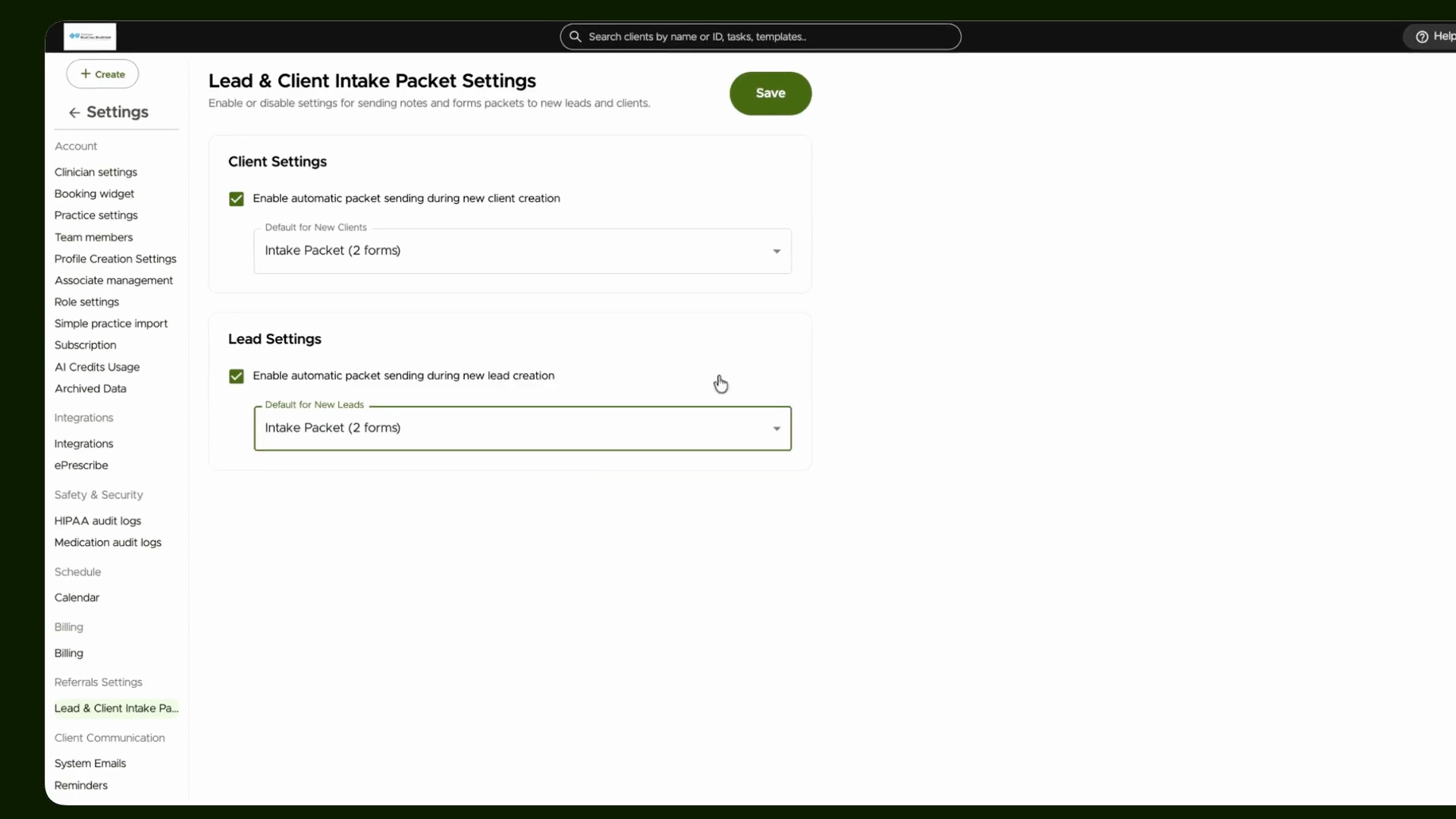
Step 5: Click Save. Now, when a new lead or client is added—with an email—they’ll automatically receive the packet.
Sending packets speeds up intake, ensures you always capture critical information, and keeps your process organized. Create as many packets as you need, and use automation to simplify onboarding for both leads and clients.